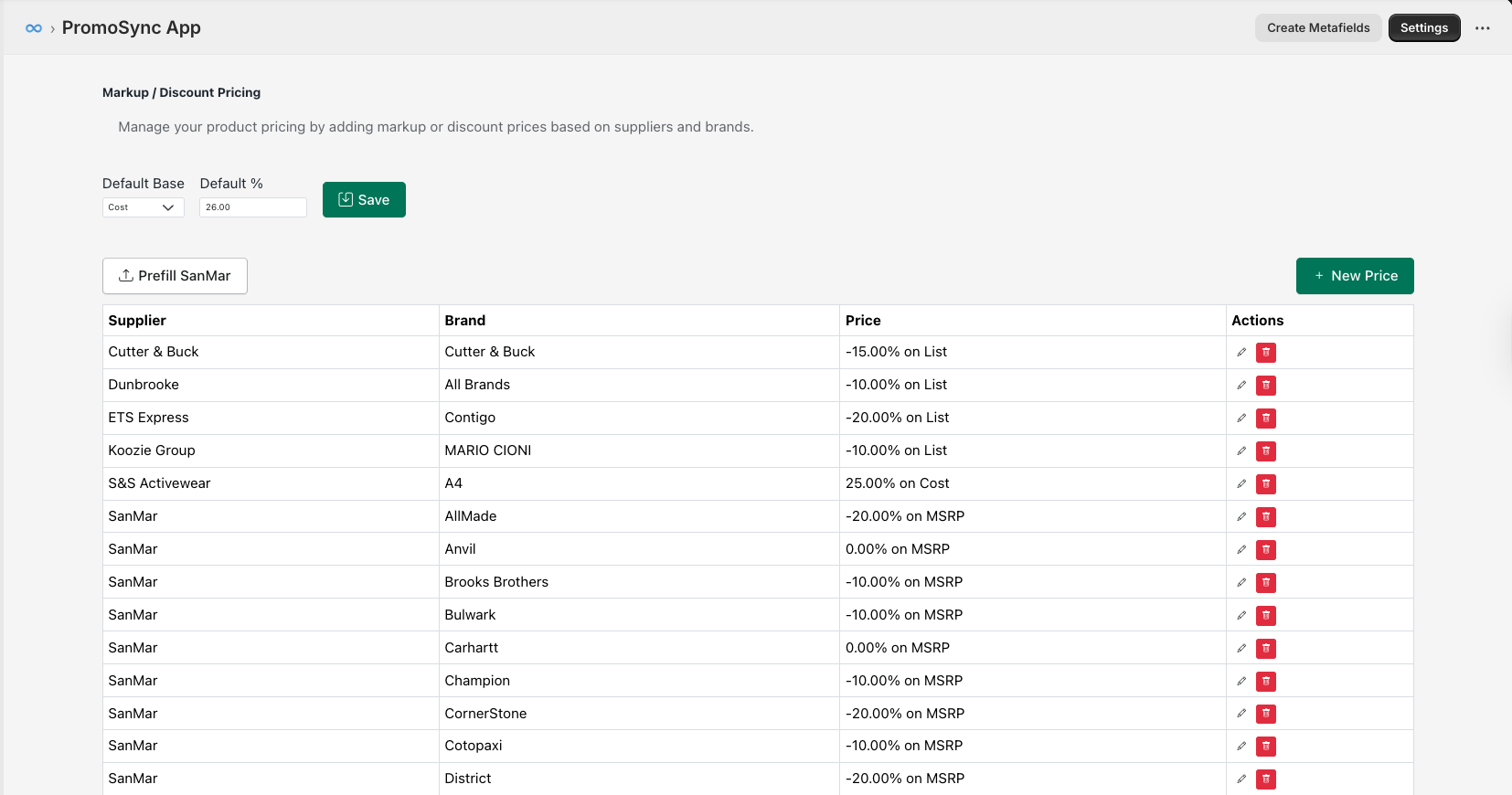
Custom Pricing (MDP)
MDP (Markup/Discount Pricing) allows you to create sophisticated pricing rules that go beyond global markup settings. Define custom pricing per supplier, per brand, or for specific product categories.
Overview
MDP enables:
- Per-supplier pricing - Different margins for different suppliers
- Per-brand pricing - Brand-specific markup strategies
- Tiered rules - Apply rules in priority order
- Price rounding - Professional price endings
Accessing MDP Settings
- Navigate to PromoSync > Settings
- Click Pricing > Custom Pricing
- Enable MDP (Markup/Discount Pricing)
Creating Pricing Rules
Rule Structure
Each MDP rule contains:
{
"id": "rule_001",
"name": "SanMar Standard Markup",
"enabled": true,
"priority": 10,
"conditions": {
"supplier_code": "SanMar"
},
"pricing": {
"type": "percentage",
"value": 40,
"apply_to": "cost"
},
"rounding": {
"type": "charm",
"value": 0.99
}
}Adding a Rule
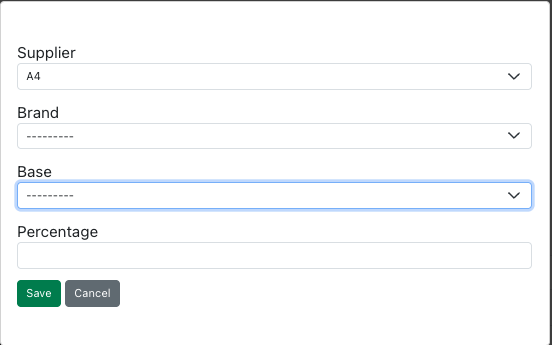
- Click Add Pricing Rule
- Enter a descriptive name
- Set the priority (lower = higher priority)
- Define conditions
- Configure pricing action
- Set rounding options
- Click Save
Condition Types
Supplier-Based Rules
Apply pricing to all products from a specific supplier:
{
"conditions": {
"supplier_code": "SanMar"
}
}Available supplier codes:
| Supplier | Code |
|---|---|
| SanMar | SanMar |
| alphabroder | ALPH |
| S&S Activewear | SS |
| Hit Promotional | HIT |
| PCNA | PCNA |
Brand-Based Rules
Apply pricing to specific brands:
{
"conditions": {
"brand": "BELLA+CANVAS"
}
}Combined Conditions
Combine supplier and brand:
{
"conditions": {
"supplier_code": "SanMar",
"brand": "The North Face"
}
}This rule only applies to The North Face products from SanMar.
Category-Based Rules
Apply to product categories:
{
"conditions": {
"category": "Outerwear"
}
}Pricing Actions
Percentage Markup
Add a percentage to the base cost:
{
"pricing": {
"type": "percentage",
"value": 40,
"apply_to": "cost"
}
}
// $10.00 cost × 1.40 = $14.00Fixed Amount Markup
Add a fixed dollar amount:
{
"pricing": {
"type": "fixed",
"value": 5.00,
"apply_to": "cost"
}
}
// $10.00 cost + $5.00 = $15.00Percentage Discount
Apply a discount to the base price:
{
"pricing": {
"type": "percentage",
"value": -15,
"apply_to": "retail"
}
}
// $20.00 retail × 0.85 = $17.00Margin-Based Pricing
Set a target margin:
{
"pricing": {
"type": "margin",
"value": 35,
"apply_to": "cost"
}
}
// $10.00 cost / (1 - 0.35) = $15.38Price Rounding
Rounding Options
| Type | Example Input | Result |
|---|---|---|
none | $14.37 | $14.37 |
nearest_cent | $14.374 | $14.37 |
nearest_5 | $14.37 | $14.35 |
nearest_10 | $14.37 | $14.40 |
nearest_dollar | $14.37 | $14.00 |
ceiling | $14.37 | $15.00 |
charm | $14.37 | $14.99 |
Charm Pricing Configuration
{
"rounding": {
"type": "charm",
"value": 0.99
}
}Other charm endings: 0.95, 0.97, 0.00
Rule Priority
Rules are evaluated in priority order (lowest number first):
Priority 1: Brand-specific (The North Face from SanMar)
Priority 10: Supplier-specific (all SanMar products)
Priority 100: Global defaultWhen multiple rules match, the highest priority (lowest number) wins.
Priority Best Practices
| Priority Range | Use For |
|---|---|
| 1-9 | Specific product overrides |
| 10-49 | Brand-specific rules |
| 50-99 | Supplier-specific rules |
| 100+ | Default/fallback rules |
Examples
Example 1: Standard Distributor Markup
40% markup on all products:
{
"name": "Standard 40% Markup",
"priority": 100,
"conditions": {},
"pricing": {
"type": "percentage",
"value": 40,
"apply_to": "cost"
},
"rounding": {
"type": "charm",
"value": 0.99
}
}Example 2: Premium Brand Markup
Higher markup for premium brands:
{
"name": "The North Face Premium",
"priority": 10,
"conditions": {
"brand": "The North Face"
},
"pricing": {
"type": "percentage",
"value": 50,
"apply_to": "cost"
},
"rounding": {
"type": "charm",
"value": 0.99
}
}Example 3: Competitive Supplier Pricing
Lower markup for competitive supplier:
{
"name": "S&S Competitive",
"priority": 50,
"conditions": {
"supplier_code": "SS"
},
"pricing": {
"type": "percentage",
"value": 30,
"apply_to": "cost"
},
"rounding": {
"type": "charm",
"value": 0.99
}
}Example 4: Category-Based Margin
Different margins for outerwear:
{
"name": "Outerwear High Margin",
"priority": 75,
"conditions": {
"category": "Outerwear"
},
"pricing": {
"type": "margin",
"value": 45,
"apply_to": "cost"
},
"rounding": {
"type": "ceiling",
"value": 1
}
}Compare-At Pricing
Automatic Compare-At
Set compare-at prices automatically:
{
"compare_at": {
"enabled": true,
"type": "percentage",
"value": 25
}
}This sets compare-at price 25% higher than selling price.
MSRP as Compare-At
Use MSRP for compare-at price:
{
"compare_at": {
"enabled": true,
"type": "msrp",
"minimum_discount": 10
}
}Only shows compare-at if discount is at least 10%.
Testing Pricing Rules
Preview Mode
Test rules before applying:
- Click Preview Pricing
- Select products to test
- See calculated prices with each rule
- Identify which rule applies
Price Preview Output
{
"product": "Unisex Jersey Tee (3001)",
"base_cost": 10.00,
"rules_evaluated": [
{"name": "BELLA+CANVAS Markup", "matches": true, "priority": 10},
{"name": "Standard Markup", "matches": true, "priority": 100}
],
"applied_rule": "BELLA+CANVAS Markup",
"calculated_price": 14.99,
"compare_at_price": 19.99
}Bulk Price Updates
After configuring rules:
- Go to PromoSync > Products
- Select products to update
- Click Bulk Actions > Update Pricing
- Choose Apply MDP Rules
- Confirm the update
API Integration
GraphQL Mutation
For developers integrating with the API:
mutation UpdateMDPRule($input: MDPRuleInput!) {
mdpRuleUpdate(input: $input) {
rule {
id
name
priority
enabled
}
userErrors {
field
message
}
}
}Python Example
# Configure MDP rule programmatically
mdp_rule = {
"name": "Custom Brand Markup",
"priority": 15,
"conditions": {
"brand": "Champion"
},
"pricing": {
"type": "percentage",
"value": 45,
"apply_to": "cost"
},
"rounding": {
"type": "charm",
"value": 0.99
}
}
response = promosync.create_mdp_rule(mdp_rule)Troubleshooting
Rule Not Applying
- Check rule is enabled
- Verify priority order
- Confirm conditions match product
- Test with Preview mode
Incorrect Prices
- Review rule calculation type
- Check base cost/retail source
- Verify rounding settings
- Look for conflicting rules
Rules Conflicting
- Review priority order
- Make conditions more specific
- Use Preview to see which rule wins
- Adjust priorities as needed
Best Practices
- Document your rules - Keep notes on why rules exist
- Use descriptive names - “SanMar 40% Q1 2024” is better than “Rule 1”
- Test before deploying - Always preview price changes
- Review regularly - Update rules when costs change
- Start broad, refine narrow - Set global defaults first