Connecting Existing Products
Already have products in your Shopify store? PromoSync can work with your existing catalog — not just freshly imported products. You just need to link them to their supplier records so that automated inventory and pricing sync can kick in.
The Problem
Products added to Shopify outside of PromoSync don’t have the PSRESTful metafields that power automated sync. Without these metafields, PromoSync has no way to match your Shopify products to the correct supplier SKUs, so inventory levels and pricing won’t update automatically.
The Solution
Connecting your existing products is a three-step process:
1. Export from PSRESTful CSV Exporter
Use the PSRESTful CSV Exporter to export product data in the Extra ID format. This format pairs each Shopify-compatible identifier with the supplier record it should link to, so the exported file can be merged back into your store.
The exported CSV looks like this:
supplier_code,product_id,extra_id,name
HIT,3035,4,Non-Woven Garment Bag
HIT,3771,10,"12"" W X 12"" H Polyester Bag"
HIT,5546,8,20 Oz. Kingston Aluminum Swiggy Bottle
HIT,5786PW,9,20 Oz. Woodtone Himalayan Tumbler With Custom Window Box
HIT,7190,5,10 Oz. Lacrosse Ceramic Mug
HIT,MS1001,3,Mountain Standard Backroads Primaloft Jacket
Each row maps a product to its three PSRESTful identifiers:
supplier_code— the supplier’s PromoStandards code (e.g.HIT)product_id— the supplier’s product identifierextra_id— PSRESTful’s stable internal ID, used to look the product up across suppliers
The name column is the supplier’s product title. You’ll use it as the bridge for matching CSV rows to the products already in your store — either by eye in a spreadsheet or with a script that fuzzy-matches against your Shopify product titles.
2. Bulk-Update with Matrixify
Use Matrixify (or a similar bulk-import app) to update your existing Shopify products with the exported CSV data. This step writes the PSRESTful metafields onto each product, linking them to the correct supplier records.
For PromoSync to recognize a product, three metafields must be present on it:
psrestful.supplier_code— the supplier’s PromoStandards codepsrestful.product_id— the supplier’s product identifierpsrestful.extra_id— PSRESTful’s stable internal ID
All three values come straight from the columns in the exported CSV.
Matching CSV rows to your Shopify products
Before you can import, you need to tell Matrixify which Shopify product each row in the PSRESTful CSV belongs to. Matrixify identifies products by handle or variant SKU, and the handles in your store almost certainly don’t match the ones PSRESTful would generate — so you can’t just bolt a Handle column onto the PSRESTful CSV. Instead, start from your store’s data and pull the supplier values into it. If you’re not technical, the most reliable workflow is:
- Export your current Shopify catalog with Matrixify. In Shopify admin, open Matrixify → Export → Products → All products. The exported file lists every product along with its handle and SKUs.
- Open both files side by side in Excel, Numbers, or Google Sheets.
- For each row in the PSRESTful CSV, find the matching Shopify product using the
namecolumn. A few distinctive words is usually enough — searchingKingston Swiggywill land you on rowHIT,5546, for example. - Copy the supplier values into the Shopify export. Add three metafield columns to the Shopify file —
Metafield: psrestful.supplier_code [single_line_text_field],Metafield: psrestful.product_id [single_line_text_field], andMetafield: psrestful.extra_id [single_line_text_field]— and paste the corresponding values from the PSRESTful CSV row by row. - Import the updated Shopify file in merge mode. Because the file already contains valid handles, Matrixify will update the right products without creating duplicates.
For a small catalog (under ~20 products), it’s often faster to skip the spreadsheet work and add the three metafields by hand: open each product in Shopify admin → Metafields → enter the values from the PSRESTful CSV.
You don’t have to do the matching by hand. Coding agents like Claude Code, Cursor, or GitHub Copilot can take both CSV files and produce a merged file for you — or write a short fuzzy-matching script that pairs PSRESTful rows to your Shopify products by name and copies over the three metafield values. A useful prompt: “Given this Shopify product export and this PSRESTful CSV, match each Shopify product to the closest row in the PSRESTful CSV by product name, and add Metafield: psrestful.supplier_code [single_line_text_field], Metafield: psrestful.product_id [single_line_text_field], and Metafield: psrestful.extra_id [single_line_text_field] columns to the Shopify file. Flag any rows where the match isn’t confident.” Always spot-check the result before importing.
Matrixify’s merge mode updates existing products by matching on handle or SKU — it won’t create duplicates.
The final step is a single PromoSync bulk action. In Shopify admin, open Products, select the products you just connected, click More actions, and choose Sync Using PSRESTful.
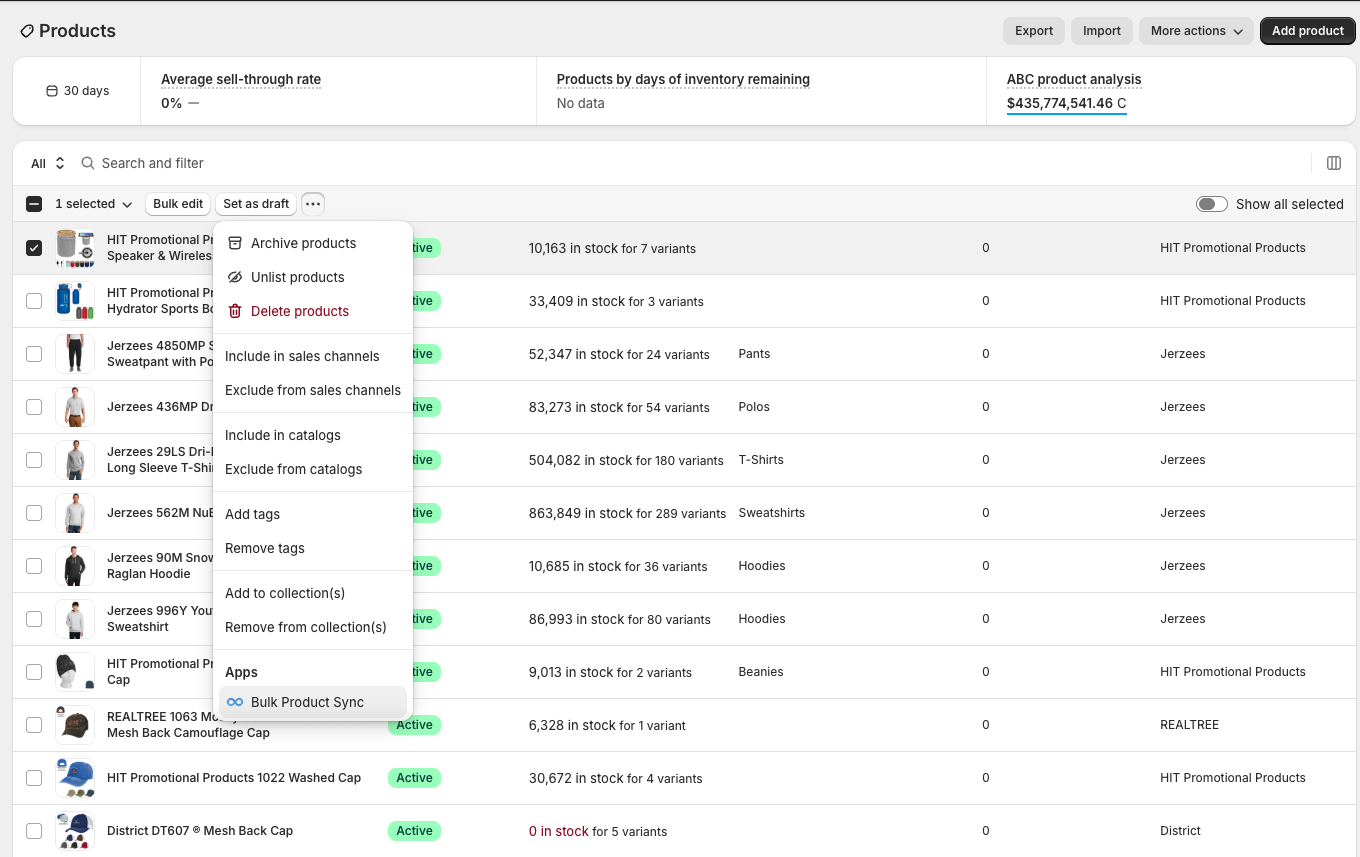
A dialog appears with a single dropdown. Pick the action and click Submit.
3. Run Onboard to PromoSync
Pick Onboard to PromoSync from the dropdown and submit. This single action runs both halves of the connection in the correct order:
- Update Metafields — pulls the rest of the supplier data (pricing tiers, decoration info, variant-level
psrestful.part_id, and other supplier-driven metafields) using the three identifiers you just imported, so each linked product matches what PromoSync would have set up on a fresh import. - Link to PromoSync — registers the now-complete products in PromoSync’s backend so automated inventory and pricing syncs target them directly. See the Link to PromoSync guide for what the registry does under the hood.
Running them inside one job guarantees the variant metafields and psrestful.extra_id are written before the registry step looks for them, which two separate bulk actions could not promise.
Smart skip. Products in your selection that already have all three psrestful identifiers and are fully onboarded are detected at the Shopify query level and skipped, so re-running this on a mixed selection is safe and cheap.
The job runs in the background and you’ll receive a summary email when it completes. The dashboard Overview also shows an Onboard to PromoSync row with its status and duration.
Need to run them separately? The original Update Metafields and Link to PromoSync bulk actions still live in the same dropdown. Use them individually if you want to refresh metafields without touching the backend registry, or vice versa. For the standard connect-existing-products flow, Onboard to PromoSync is the recommended one-click option.
What Happens Next
Once connected, your existing products behave exactly like products imported through PromoSync:
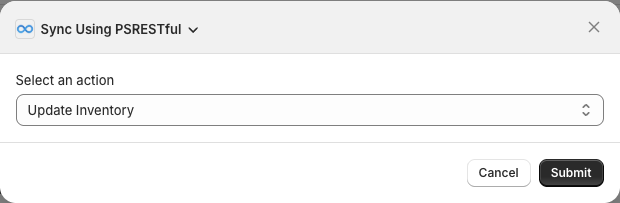
- Inventory syncs automatically based on your inventory settings. You can also force an immediate refresh with the Update Inventory bulk action.
- Pricing updates follow your custom pricing rules.
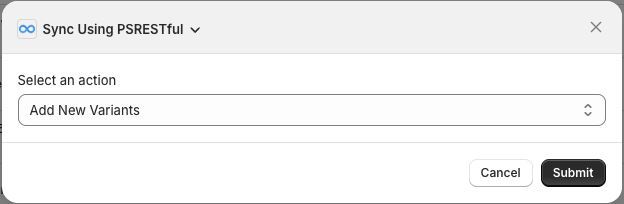
- New variants can be pulled in on demand by running the Add New Variants bulk action whenever a supplier introduces additional sizes or colors.
Update Inventory and Add New Variants live in the same Sync Using PSRESTful dialog you used in step 3:
This workflow involves bulk-updating metafields across your catalog. We recommend running it on a small batch first to verify the results before processing your full inventory.
Need Help?
Connecting an existing catalog can vary depending on how your products are structured. Reach out to us and we’ll walk you through the process for your specific store.
- Email: support@psrestful.com
- Website: psrestful.com