Bulk Actions
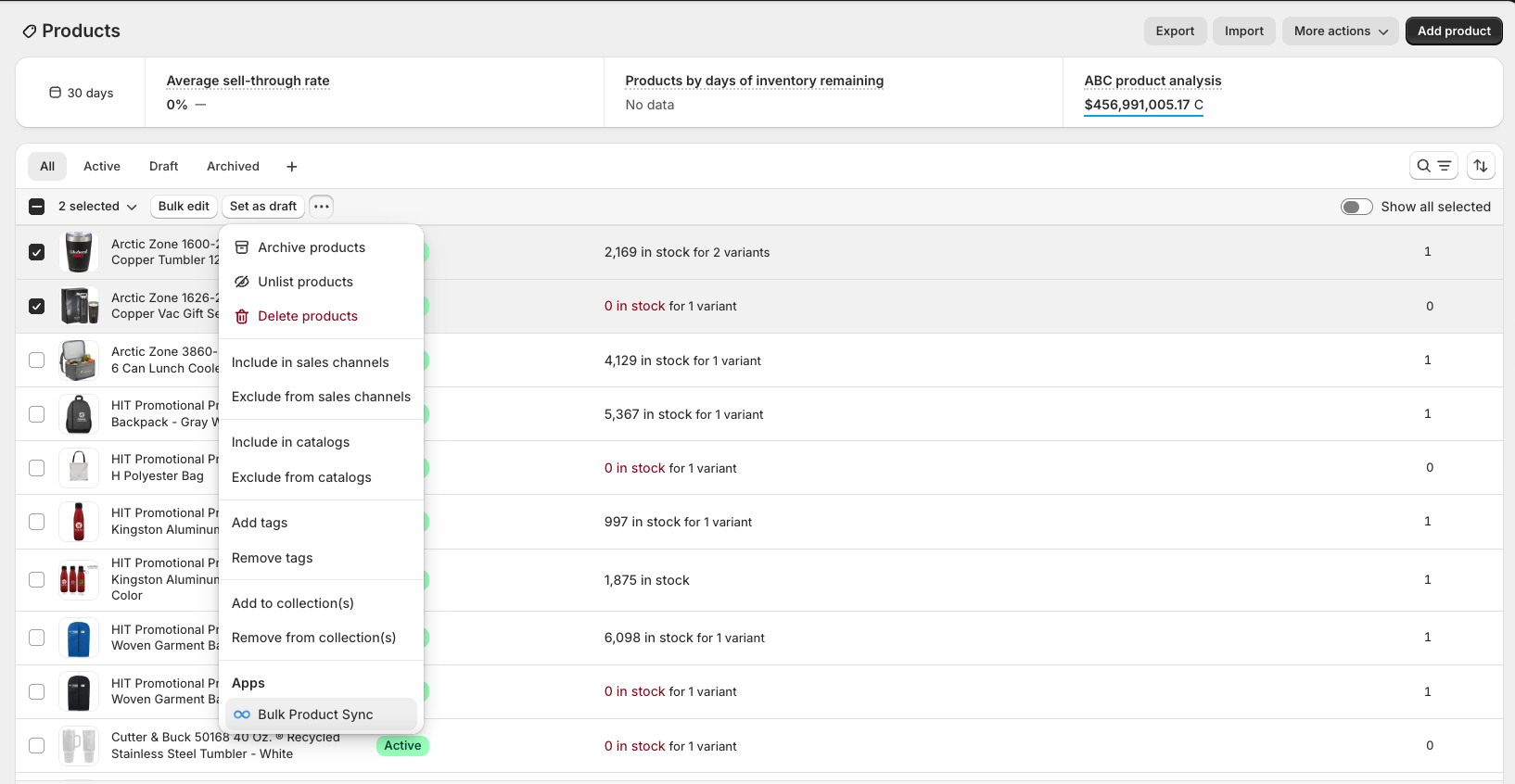
PromoSync integrates with Shopify’s bulk actions menu. Select one or more products in Shopify Admin, open the Sync Using PSRESTful dialog, and pick the job you want PromoSync to run in the background.
Accessing Bulk Actions
From Shopify Admin
- Go to Products in your Shopify admin
- Select multiple products using checkboxes
- Click the
...button in the toolbar - Select Apps > Bulk Product Sync
Available Bulk Actions
PromoSync provides ten bulk operations:
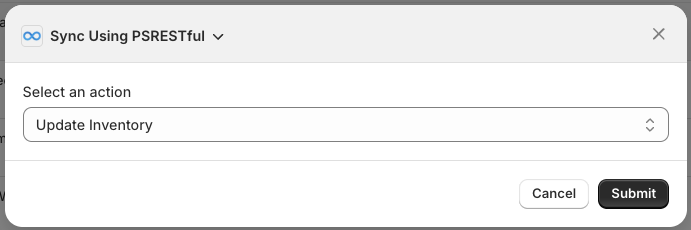
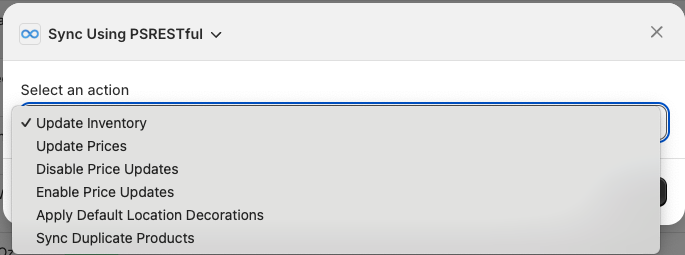
| Action | What it does | Email report? |
|---|---|---|
| Update Inventory | Pulls fresh stock levels from suppliers. | Yes |
| Update Prices | Recalculates the visible Shopify variant price using your current pricing settings. | Yes |
| Update Metafields | Rewrites all PromoSync data on the selected products without re-importing them. Use this after changing a pricing formula or a metafield definition. | Yes |
| Add New Variants | Detects new supplier colors or sizes and adds them to existing Shopify products. Never deletes variants. | Yes |
| Disable Price Updates | Prevents automatic price syncing for the selected products. | No |
| Enable Price Updates | Re-enables automatic price syncing. | No |
| Apply Default Location Decorations | Stamps your tag-based default decoration rules onto products that match. Useful for blanks. | No |
| Link to PromoSync | Registers existing or duplicated Shopify products so future syncs skip redundant calls. | No |
| Onboard to PromoSync | Onboards pre-existing Shopify products (Update Metafields plus Link to PromoSync) in a single tracked job. | Yes |
| Enrich Location Decorations | Wires each decoration on a product to its Setup Fee and Run Charge product, so checkout charges the imprint correctly. | Yes |
Every action above with a link has a dedicated walkthrough. The two price-toggle actions are covered in detail below.
Most jobs run asynchronously and send a summary email when they finish. Configure who receives those emails in your shop settings under Notification Contacts.
Update Inventory
Pull fresh stock levels from suppliers and write them to the selected products’ Shopify location.
See the Update Inventory walkthrough for prerequisites, how supplier rate limits affect a run, and the email report fields.
Update Prices
Recalculate the visible Shopify variant price using your current pricing settings.
See the Update Prices walkthrough for prerequisites, the visible-versus-hidden price distinction, and the interaction with Disable Price Updates.
Update Metafields
Refresh all PromoSync data on the selected products without re-importing them. This is the action to reach for after you change a pricing formula or metafield definition and want existing products to reflect the change.
See the Update Metafields walkthrough for prerequisites, how variants get matched up, and why a product might be skipped.
Add New Variants
Find supplier colors and sizes your products are missing and add them, without touching the variants that are already there.
See the Add New Variants walkthrough for prerequisites, color-split shop behavior, and the email report fields.
Disable Price Updates
Prevent automatic price syncing for selected products. Products will keep their current prices and won’t be affected by future price sync operations.
When to Use
- You’ve set custom prices you want to preserve
- Supplier pricing data is temporarily unreliable
- Running a promotion with manual pricing
How to Disable Price Updates
- Select products to exclude from price syncing
- Choose Disable Price Updates from the action dropdown
- Confirm the action
Enable Price Updates
Re-enable automatic price syncing for products that previously had price updates disabled.
When to Use
- Promotion period has ended
- Supplier pricing data is corrected
- You want to resume automatic pricing
How to Enable Price Updates
- Select products to re-enable price syncing for
- Choose Enable Price Updates from the action dropdown
- Confirm the action
Apply Default Location Decorations
Apply your configured tag-based decoration rules to selected products. Use this when you sell blanks from a supplier that doesn’t publish decoration data and you want to stamp your own house defaults onto matching products.
See the Apply Default Decorations walkthrough for the rule setup, how merging works (existing data is preserved), and how to verify the result.
Link to PromoSync
Register the selected Shopify products (including ones you duplicated) with PromoSync’s backend so future syncs skip redundant API calls. Previously called Sync Duplicate Products.
See the Link to PromoSync bulk-action walkthrough for when to pick the selected-products version over the all-products one on the dashboard, or the Link to PromoSync main guide for the deeper explanation of what gets registered and why.
Onboard to PromoSync
Bring pre-existing Shopify products under PromoSync’s management. Behind the scenes this runs Update Metafields followed by Link to PromoSync as a single tracked job, skipping products that are already fully onboarded.
See the Onboard to PromoSync walkthrough for prerequisites, the recommended follow-up actions after onboarding, and the email report fields.
Enrich Location Decorations
Wire each decoration on a product to its Setup Fee and Run Charge product so checkout can charge the imprint correctly. Run this after importing decorated products, and after each time you create or refresh decoration products via Decoration Listings.
See the Enrich Location Decorations walkthrough for prerequisites and how to read the “unmatched decorations” section of the email.
Bulk Action Limits
Processing Limits
| Action | Max Products | Max Variants |
|---|---|---|
| Update Inventory | 500 | 10,000 |
| Update Prices | 500 | 10,000 |
| Update Metafields | 500 | 10,000 |
| Add New Variants | 500 | 10,000 |
| Disable Price Updates | 1,000 | N/A |
| Enable Price Updates | 1,000 | N/A |
| Apply Default Location Decorations | 500 | 10,000 |
| Link to PromoSync | 500 | 10,000 |
| Onboard to PromoSync | 500 | 10,000 |
| Enrich Location Decorations | 500 (or all store-wide) | 10,000 |
For larger operations, actions are queued and processed in batches.
Rate Limiting
Bulk actions respect Shopify and supplier rate limits:
- Shopify: 40 requests/second
- Suppliers: Varies by supplier
- PSRESTful: Based on your plan
Actions automatically throttle to stay within limits for Shopify.
PSRESTful plans limit the number of API calls available per day/month.
Best Practices
1. Start Small
Test with a few products before running large bulk operations.
2. Schedule During Off-Peak
Run large operations during low-traffic periods.
3. Review Results
Always check the results summary for errors.
4. Backup Important Products
Consider exporting critical products before bulk changes.
5. Use Filters
Narrow your selection to only affected products.
Troubleshooting
Action Times Out
For large operations:
- Reduce the number of selected products
- Try during off-peak hours
- Contact support for assistance
Partial Completion
If an action partially completes:
- Review the error summary
- Fix issues with failed products
- Retry only the failed products
Unexpected Results
If results don’t match expectations:
- Verify your settings before the action
- Check for recent setting changes
- Review the action log for details