Inventory & Scheduling
PromoSync keeps your Shopify inventory synchronized with supplier stock levels. This guide covers inventory settings and scheduling options.
Inventory Overview
PromoSync syncs inventory data from PromoStandards suppliers:
- Real-time stock quantities
- Warehouse availability
- Estimated restock dates (when available)
Location Configuration
Primary Location
Select the Shopify location that receives inventory updates:
- Go to Settings > Inventory
- Under Primary Location, select your location
- Click Save
Sync Scheduling
Default Schedule
Set your default inventory update frequency:
| Frequency | Description | Best For |
|---|---|---|
| Once a Day | Updates once per day | Standard inventory |
| Twice a Day | Updates twice per day | Standard inventory |
| Weekly | Updates once per week | Slow-moving items |
| On Demand | Only when triggered | Use Button or Bulk Actions |
Setting Default Schedule
- Navigate to Settings > Inventory
- Select Default Sync Frequency
- Choose your preferred schedule
- Click Save
Collection-Based Scheduling
Set different sync frequencies for different collections:
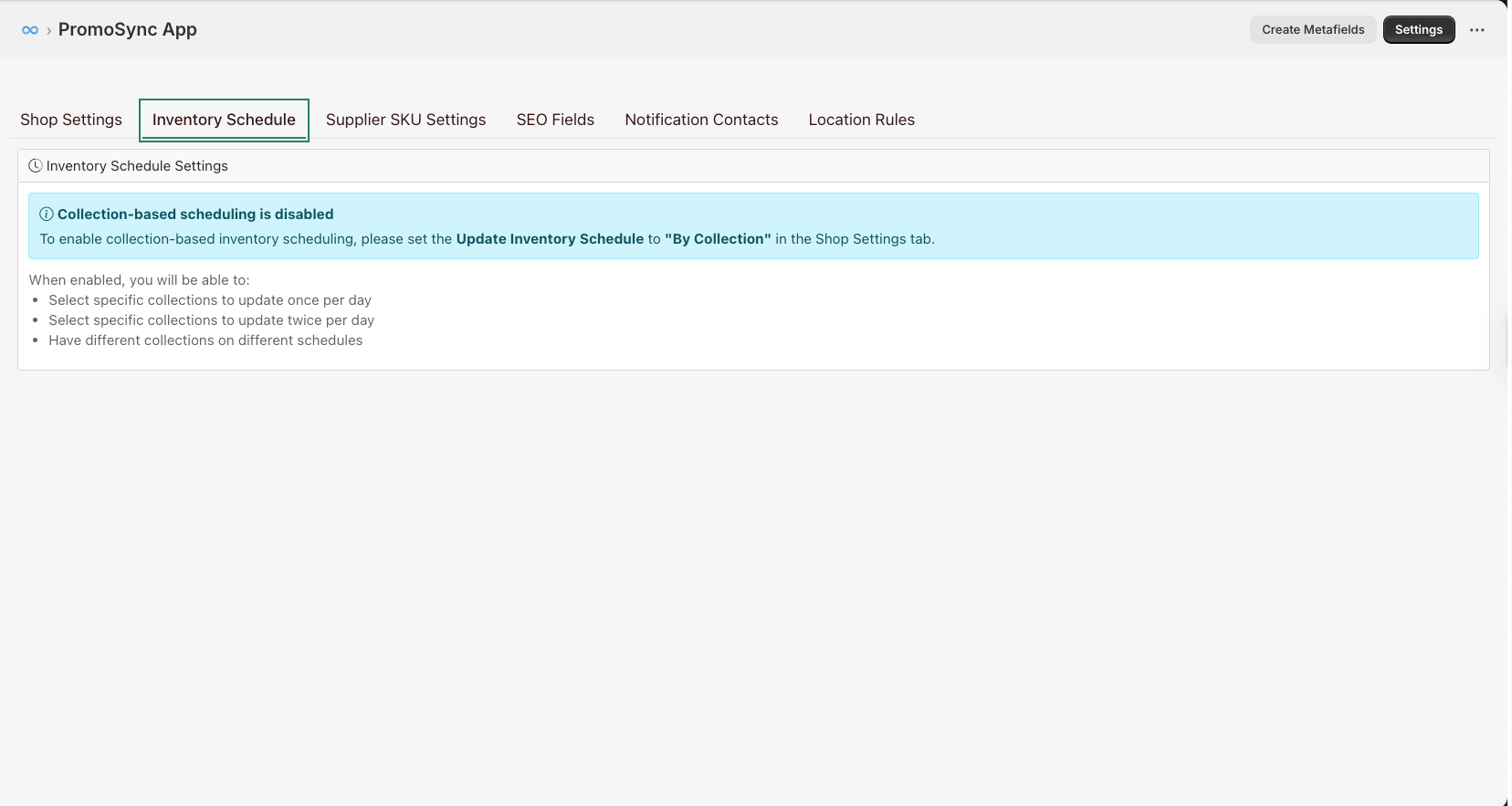
Setting Collection Schedules
- Go to Settings > Inventory
- Scroll to Collection-Based Scheduling
- Click Add Rule
- Select a collection and frequency
- Click Save
Inventory Sync Settings
Sync Options
| Setting | Description |
|---|---|
| Track Inventory | Enable inventory tracking in Shopify |
| Continue Selling | Allow sales when out of stock |
| Update Zero Stock | Set to 0 when supplier has no stock |
Out of Stock Handling
Configure what happens when products go out of stock:
| Option | Behavior |
|---|---|
| Set to Zero | Inventory shows as 0 |
| Hide Product | Product becomes unavailable |
| Tag Product | Add “out-of-stock” tag |
| Keep Last Value | Don’t update (risky) |
Manual Sync Operations
Sync Individual Products
- Navigate to the product in PromoSync
- Click Sync Inventory
- Wait for confirmation
Bulk Sync
- Select multiple products in the product list
- Choose Bulk Actions > Sync Inventory
- Confirm the operation
Full Catalog Sync
- Go to Settings > Inventory
- Click Sync All Products
- Note: This may take significant time for large catalogs
Inventory Metafields
PromoSync stores inventory metadata in metafields:
// product.metafields.psrestful.inventory_data
{
  "lastSync": "2024-01-20T14:30:00Z",
  "supplierCode": "SanMar",
  "warehouses": [
    {"location": "Dallas", "qty": 100},
    {"location": "Phoenix", "qty": 75}
  ],
  "totalAvailable": 175,
  "restockDate": null
}
Access in Liquid:
{% raw %}{% assign inv = product.metafields.psrestful.inventory_data.value %}
{% if inv.totalAvailable > 0 %}
  <span class="in-stock">In Stock ({{ inv.totalAvailable }} available)</span>
{% else %}
  <span class="out-of-stock">Out of Stock</span>
{% endif %}{% endraw %}
Performance Considerations
Sync Volume Limits
| Plan | Max Products | Sync Frequency |
|---|---|---|
| Basic | 500 | Daily |
| Professional | 5,000 | Hourly |
| Enterprise | Unlimited | Real-time |
Optimization Tips
- Use collection-based scheduling - Sync popular items more frequently
- Set appropriate buffers - Prevent overselling without over-holding
- Monitor sync logs - Identify and fix errors promptly
- Stagger sync times - Avoid syncing all products at once
Troubleshooting
Inventory Not Updating
- Check sync schedule settings
- Verify the product is in sync
- Review sync logs for errors
- Test with a manual sync
Incorrect Quantities
- Compare with supplier’s live inventory
- Check buffer settings
- Verify location mapping
- Look for recent sync errors
Sync Taking Too Long
- Reduce sync frequency for low-priority products
- Use collection-based scheduling
- Contact support if persistent