Importing Products
This guide walks you through finding and importing promotional products from PromoStandards suppliers into your Shopify store.
Overview
PromoSync connects to 100+ promotional product suppliers through the PSRESTful API. You can search their combined catalogs, preview products, and import them directly to Shopify with your configured pricing and settings.
Your First Import
Step 1: Access the Import Screen
- Open your Shopify admin
- Navigate to Apps > PromoSync
- Click Import Products in the main navigation
Step 2: Search for Products
Enter search terms in the search bar:
- Product type: “t-shirt”, “polo”, “hoodie”
- Brand: “Bella Canvas”, “Gildan”
- Part ID: “3001”, “G500”
Click Search or press Enter.
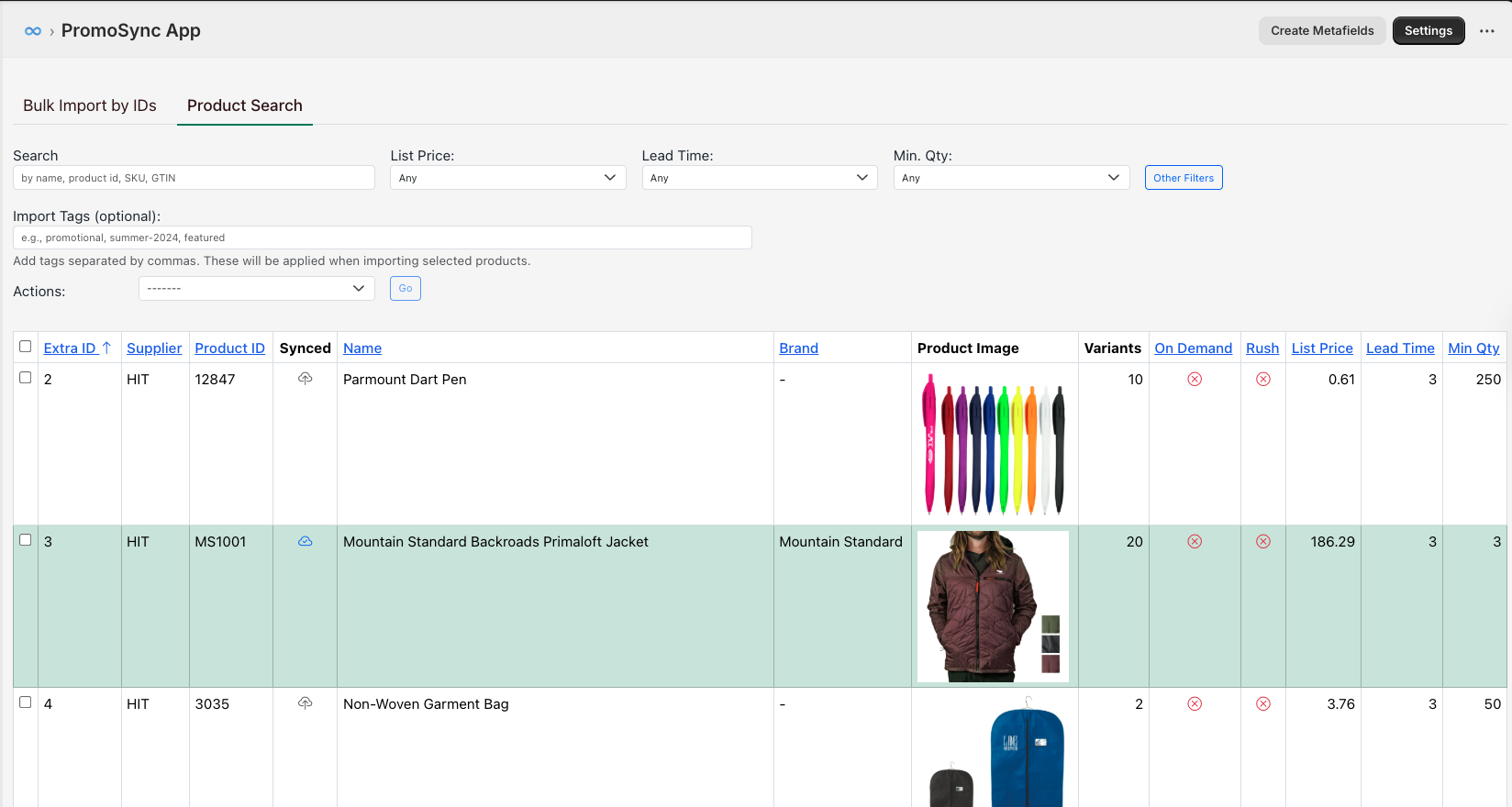
Step 3: Review Results
The search results show:
- Product image thumbnail
- Product name and part ID
- Brand and supplier
- Price range
- Available colors/sizes
Step 4: Preview a Product
Click on any product to see:
- All product images
- Complete pricing tiers
- Available variants (colors and sizes)
- Inventory levels
- Product specifications
Step 5: Import the Product
- Click Import to Shopify
- Confirm the import settings
- Wait for the import to complete
- Click View in Shopify to see your new product
Filtering Products
Filtering by Supplier
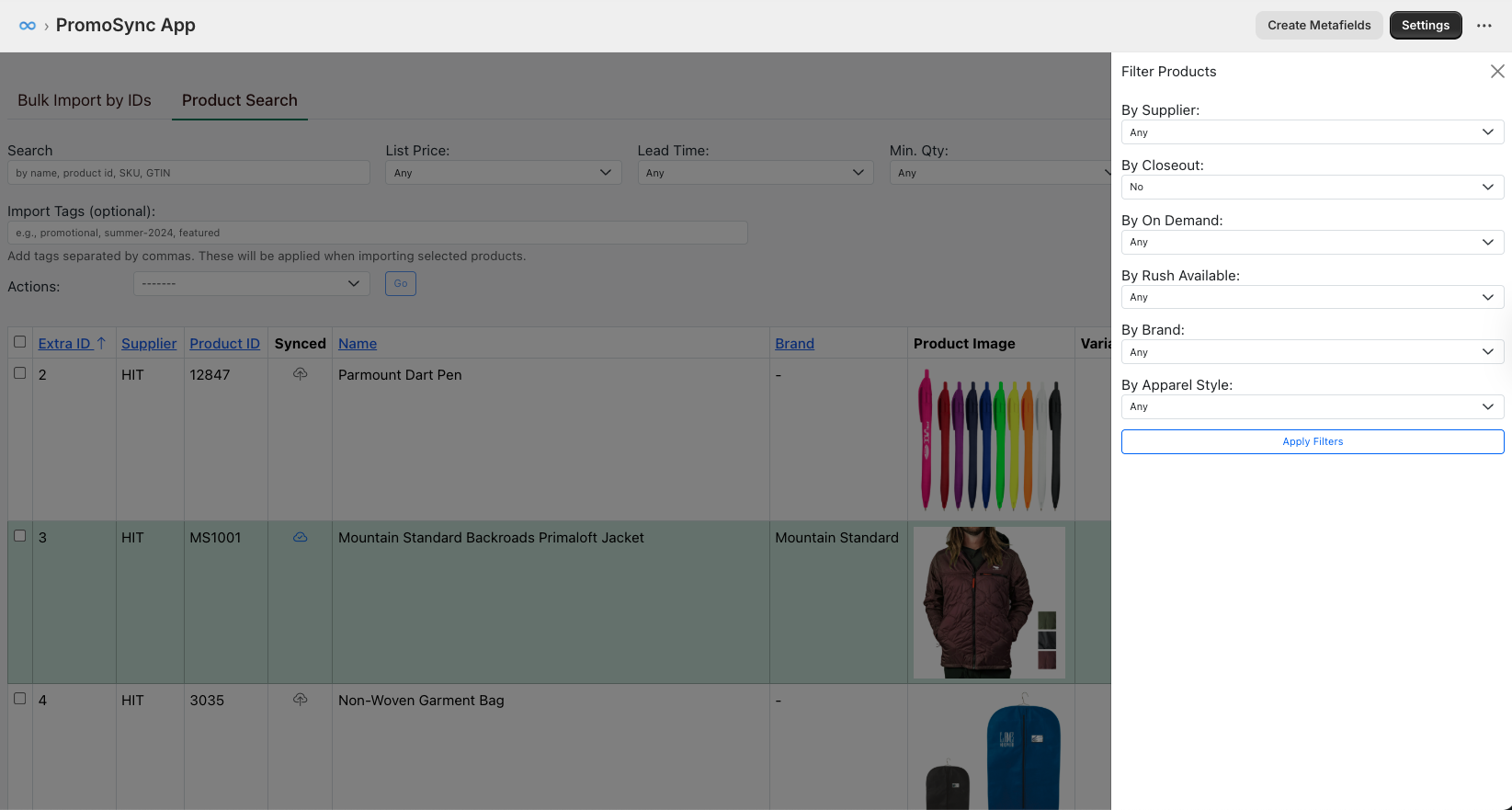
Import products from specific suppliers:
- Click Filters on the search results page
- Under Supplier, select one or more suppliers
- Click Apply Filters
Popular suppliers:
- SanMar
- S&S Activewear
- Hit Promotional Products
- PCNA
Filtering by Brand
Find products from specific brands:
- Click Filters
- Under Brand, type or select brand names
- Click Apply Filters
Examples:
- BELLA+CANVAS
- Gildan
- Champion
- The North Face
- Nike
Combining Filters
Apply multiple filters simultaneously:
Supplier: SanMar
Brand: The North Face
Search: "softshell"
This finds The North Face softshell jackets available from SanMar.
Bulk Import
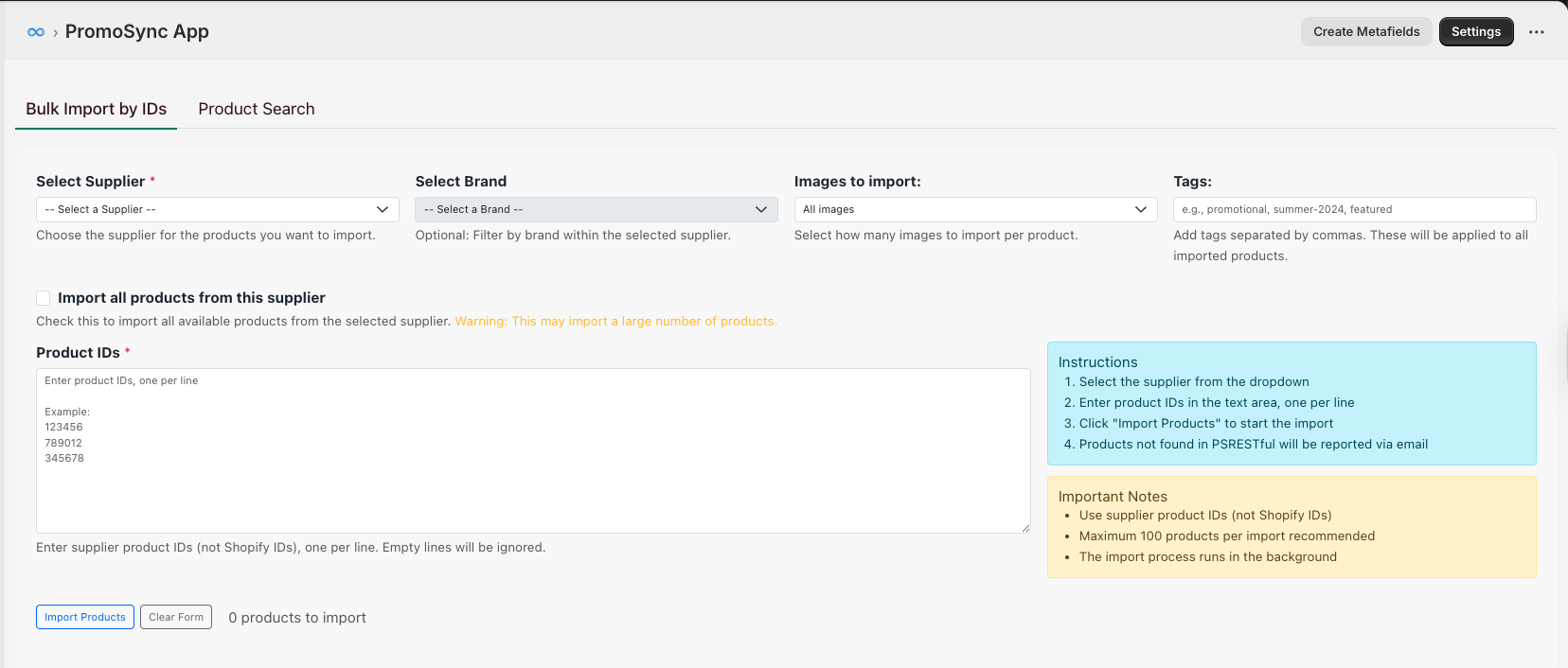
Selecting Multiple Products
- Check the box next to each product you want to import
- Or click Select All to select all visible results
- The selection count appears at the top
Importing Selected Products
- With products selected, click Import Selected
- Click Confirm Import
You can navigate away - imports continue in the background.
Import Options
Per-Import Settings
Override default settings for specific imports:
| Option | Description |
|---|---|
| Title Format | Override default title template |
| Pricing Strategy | Use different pricing for this import |
| Target Collection | Add to specific collection |
| Publish Status | Draft or Active |
Skip Existing Products
By default, PromoSync skips products already in your store (matched by part ID). You can:
- Skip - Don’t reimport (default)
- Update - Update existing product data
- Duplicate - Create a new product
Managing Import History
Viewing Import History
- Navigate to PromoSync > History
- See all past imports with:
- Date and time
- Product count
- Success/failure status
- Who triggered the import
Retrying Failed Imports
If products fail to import:
- Click on the failed import in history
- Review the error details
- Click Retry Failed Products
Common errors:
Rate limit exceeded- Wait and retryInvalid image URL- Check with supplierVariant limit exceeded- Use variant grouping
Import Performance
Estimated Times
| Products | Variants | Estimated Time |
|---|---|---|
| 1 | 20 | 5-10 seconds |
| 10 | 200 | 1-2 minutes |
| 50 | 1,000 | 5-10 minutes |
| 100 | 2,000 | 10-20 minutes |
Times vary based on:
- Number of images
- Variant complexity
- Supplier response time
- Shopify API limits
Optimization Tips
- Import during off-peak hours - Faster supplier responses
- Use filters - Only import what you need
- Batch similar products - Better caching
- Check inventory first - Avoid importing out-of-stock items
Verifying Imports
After Import Checklist
- ✓ Product appears in Shopify
- ✓ All variants are present
- ✓ Images loaded correctly
- ✓ Pricing is accurate
- ✓ Inventory levels are set
- ✓ Metafields are populated
Viewing Synced Products
- In PromoSync, go to Products
- Synced products will be highlighted
Checking Sync Status
Each synced product shows:
- Last sync time
- Sync status (success, pending, error)
- Supplier connection status
Troubleshooting
No Search Results
- Check your search terms - try broader terms
- Verify your PSRESTful subscription includes the supplier
- Check supplier availability in your region
- Try filtering by supplier first, then searching
Import Fails
| Error | Solution |
|---|---|
| ”Product already exists” | Enable update or use different SKU strategy |
| ”Image download failed” | Retry - temporary network issue |
| ”Variant limit exceeded” | Enable variant grouping |
| ”API rate limited” | Wait 60 seconds and retry |
Incorrect Data
If imported data doesn’t match expectations:
- Check your import settings (title format, pricing, etc.)
- Compare with PSRESTful API directly
- Verify supplier data in their portal
- Contact support with specific examples
Next Steps
After importing products:
- Configure storefront widgets - Display tier pricing and more
- Set up inventory sync - Keep stock levels current
- Review bulk actions - Manage products efficiently