Tier Pricing Rules
Tier Pricing Rules let you define quantity-break pricing for your products even when the supplier doesn’t publish tier pricing data. Each rule says: “for any product with these tags, build a tier-price array with these quantity breakpoints, this markup, and this per-piece decoration charge.”
Why You Need These Rules
The variant-level metafield that powers the tier-pricing block on your product pages is psrestful.part_price_array. PromoSync populates it from the supplier’s PPC (Product Pricing and Configuration) response. When a supplier doesn’t publish PPC tier data, or publishes tiers that don’t fit your distributor model, that metafield ends up empty or with the wrong shape, and the storefront tier-pricing block has nothing useful to show.
This matters in two common situations:
- Suppliers that don’t publish tier pricing. Suppliers like SanMar and S&S sell blanks at simple per-unit prices; they don’t ship quantity-break tables through PromoStandards. PromoSync has nothing to put in the tier-price array.
- Distributors who want their own tier structure. Even when a supplier does publish tiers, those tiers reflect the supplier’s business (their wholesale ladder), not yours. A distributor who decorates and resells typically wants a different ladder, often with a markup applied uniformly across tiers and a per-piece decoration charge added on top.
Tier Pricing Rules close that gap. You define one rule per tag (e.g. t-shirt, embroidery), PromoSync builds the tier array from your rule’s breakpoints, applies your markup, and adds your decoration charge.
When a rule matches, it wins over the supplier’s own tier pricing. The distributor’s rule reflects the distributor’s business, so PromoSync intentionally lets it override any supplier-supplied tier array. The visible variant price also follows from the rule’s first tier.
When Rules Are Applied
A rule fires whenever PromoSync rebuilds variant pricing for a matched product:
- At import time. Newly imported variants get their
psrestful.part_price_arraybuilt from your matching rule. - When Update Metafields runs. That action rebuilds the full PromoSync metafield bundle, including the tier-price array, against your current rules.
- When Update Prices runs. That action recalculates the visible variant price; under the hood it consults the same pricing pipeline, so an active rule reshapes the tier array at the same time.
There is no dedicated “Apply Default Tier Pricing” bulk action. After adding or editing a rule, run Update Metafields (or Update Prices) on the affected products to re-apply.
The rule only fires when the supplier returned PPC data for the product. If the supplier exposes no pricing service at all, there’s no base cost for the rule to mark up, and the variant is left alone. The same is true when the shop-level Default Tier Pricing feature is turned off in Shop Settings.
Finding the Settings Page
- Open PromoSync from your Shopify admin.
- Go to Shop Settings.
- In the sidebar, click Tier Pricing Rules.
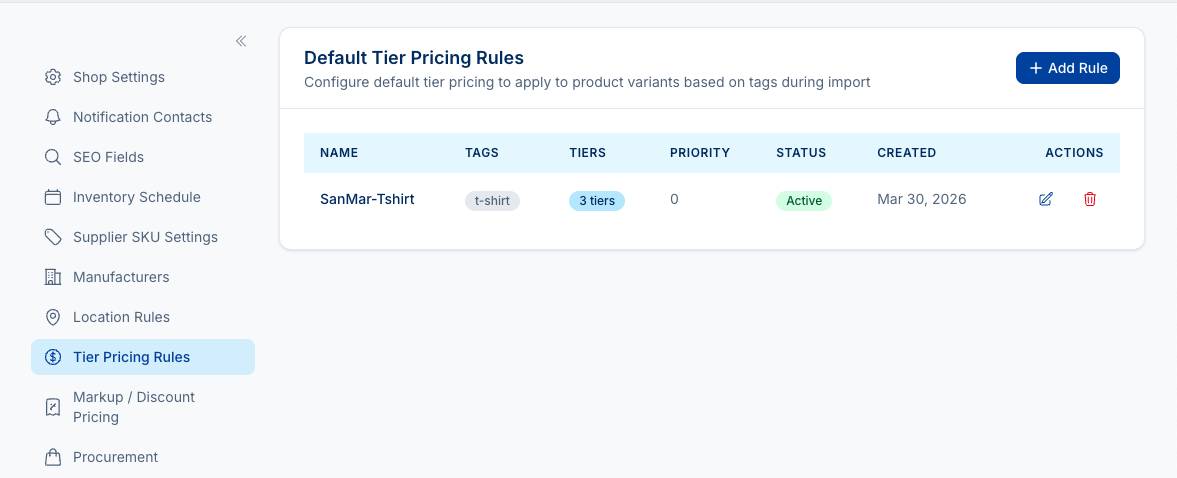
The Tier Pricing Rules tab appears in the sidebar only when the Default Tier Pricing feature is turned on in Shop Settings. If you don’t see the tab, enable the feature first.
The table lists every rule, with Name, Tags, Tiers (count), Priority, Status, and Created columns. The pencil icon opens the rule for editing; the trash icon deletes it.
Creating a Rule
Click + Add Rule in the top right of the table to open the Create Tier Pricing Rule dialog:
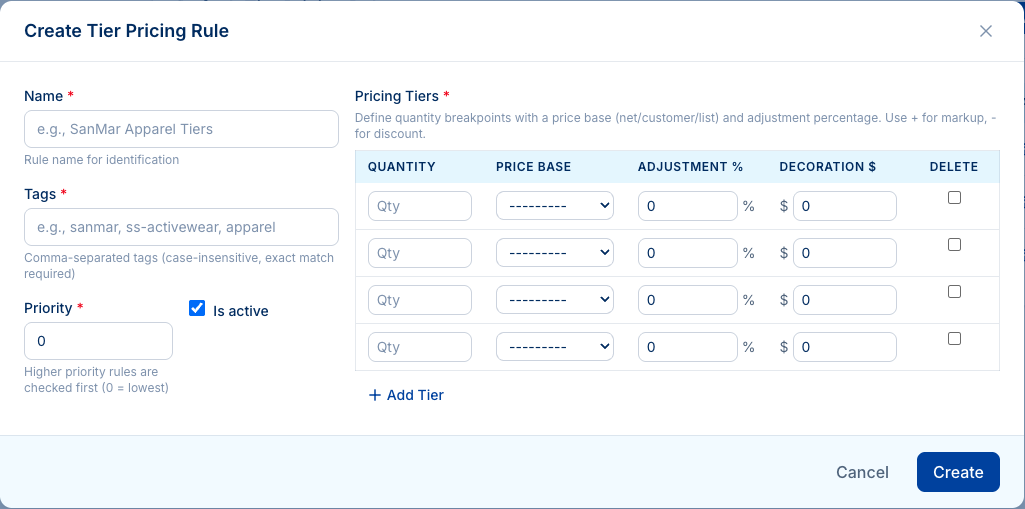
| Field | What it does |
|---|---|
| Name | A label for you. PromoSync never shows it to customers; it only appears in the settings table. |
| Tags | Comma-separated product tags this rule applies to. Matching is case-insensitive and exact: t-shirt matches T-Shirt but not t-shirts. A product matches if it carries any one of the listed tags. |
| Priority | If a product matches more than one rule, the higher-priority rule wins. 0 is the lowest. Use higher numbers for more specific rules. |
| Is active | Uncheck to disable a rule temporarily without deleting it. Inactive rules are skipped during matching. |
| Pricing Tiers | The quantity-break grid (see below). One row per breakpoint. Click + Add Tier to append a row; tick Delete to remove a row when saving. |
Each row of the Pricing Tiers grid defines one quantity break:
| Column | What it does |
|---|---|
| Quantity | The minimum order quantity this tier kicks in at (e.g. 1, 12, 24, 48). |
| Price Base | Which supplier price to start from for this tier: Net, Customer, or List. PromoSync reads the matching field from the supplier’s PPC response (combined with the shop’s blank/decorated configuration). |
| Adjustment % | A positive percentage adds markup, a negative percentage applies a discount. Calculated as base * (1 + adjustment / 100). Each row sets its own value, so different tiers can carry different markups if you want. |
| Decoration $ | A flat per-piece dollar amount added to the calculated price for this tier. It’s added unconditionally, regardless of whether the product is decorated. |
A rule must have at least two tiers to take effect. If a rule has only one tier, PromoSync falls back to the supplier’s tier array as if the rule didn’t exist. The visible variant price is set from the rule’s first (lowest-quantity) tier.
Click Create to save. The rule takes effect at the next import, and the next time Update Metafields or Update Prices runs on a matching product.
A Worked Example
The Update Tier Pricing Rule dialog below shows a realistic apparel ladder: seven quantity breaks (1, 12, 24, 48, 72, 144, 288), all marked up 65% on top of the supplier’s Net price, with a per-piece decoration charge that steps down as quantity grows ($10.00 at quantity 1, falling to $4.00 at quantity 288).
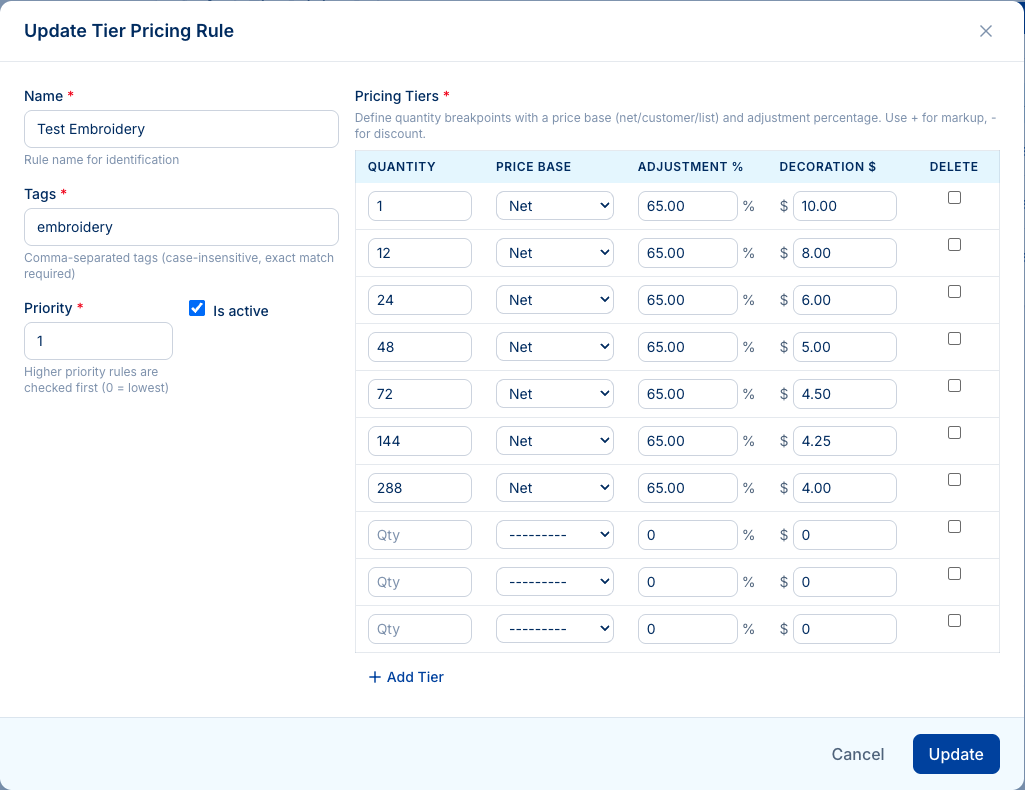
For the 24-piece tier, the price PromoSync writes to psrestful.part_price_array is:
price = supplier_net_price * (1 + 65/100) + 6.00If the supplier’s Net price for the variant is $8.00, that’s 8.00 * 1.65 + 6.00 = $19.20 for each piece when the buyer orders 24.
Tag and Priority Strategy
A few patterns that work well:
- One tag per rule. A rule keyed to a single distinctive tag like
t-shirt-tieris easier to debug than a rule that lists five overlapping tags. - Generic at low priority, specific at high priority. A
default-pricingrule at priority0covers the fallback case; layerembroideryorlaser-engrave-possiblerules on top at higher priorities to override for decorated products. - Use Shopify’s bulk-tag tools. You can filter by vendor or collection in Shopify Admin and apply a tag to all selected products at once, which makes large rollouts cheap.
Only one rule fires per product: the highest-priority active rule whose tags match. Ties are broken by most-recently-created. The rule then applies to every variant of that product, since rules match by product tags rather than per-variant data.
Verifying a Rule Worked
After importing a product (or running Update Metafields on it):
- Open the variant in Shopify Admin and scroll to its metafields.
- Look for
psrestful.part_price_array. It should contain one entry per tier in your rule, with the calculated price in cents and thequantityMinmatching your rule’s quantity column. - The product-level
psrestful.minimum_quantityshould equal the lowest tier’s quantity. - Or load the product page on your storefront and confirm the tier-pricing block shows the expected breakpoints.
Editing or Disabling a Rule
In the Tier Pricing Rules table:
- Click the pencil icon to edit any field, including individual tier rows. Saves take effect for the next import, the next Update Metafields run, and the next Update Prices run, but they do not retroactively update products that already had the old tier array written to them. Run Update Metafields on the affected products to re-apply.
- Uncheck Is active to pause a rule without deleting it. Inactive rules are ignored during matching.
- Click the trash icon to permanently delete a rule. Deleting a rule does not remove tier pricing already written to variants; run Update Metafields on those variants to rebuild from whichever rule now matches (or from the supplier’s tier array if no rule matches).
Related
- Update Metafields: rebuilds the metafield bundle on selected products, re-applying your current Tier Pricing Rules.
- Update Prices: recalculates the visible variant price; uses the same pricing pipeline, so the tier array is rebuilt at the same time.
- Pricing Configuration: the broader pricing settings (blank vs. decorated configuration, markup formulas) that determine which supplier price each tier starts from.
- Location Rules: the sibling feature for default decoration locations, useful for the same suppliers that don’t publish decoration data.