First-time Setup
This guide is for merchants who have just installed PromoSync from the Shopify App Store. It walks through the three-step onboarding wizard the dashboard runs on first launch and tells you what to do once it finishes.
For the prerequisites (Shopify account, PSRESTful account, API key generation), see the Installation guide.
The Onboarding Wizard
When you open PromoSync for the first time, the dashboard hides itself behind a three-step wizard. Each step gates the next, and the dashboard remembers where you left off if you close the tab.
Step 1 of 3: Connect PSRESTful
PromoSync needs a PSRESTful API key to read supplier catalogs, pricing, and inventory.
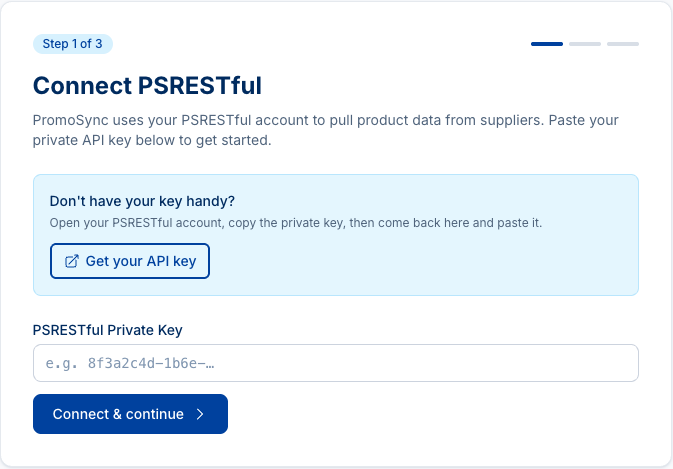
- Open psrestful.com/dashboard/api-keys/private/ in another tab
- Click Generate New Key (or copy an existing one)
- Paste it into the PromoSync wizard and submit
The wizard validates the key against PSRESTful before letting you continue. If the key is rejected, double-check for stray whitespace, confirm your PSRESTful subscription is active, and confirm the key has not been revoked.
Step 2 of 3: Notification contacts
Tell PromoSync where to email async-job summaries (inventory syncs, price updates, onboarding results, and similar background jobs).
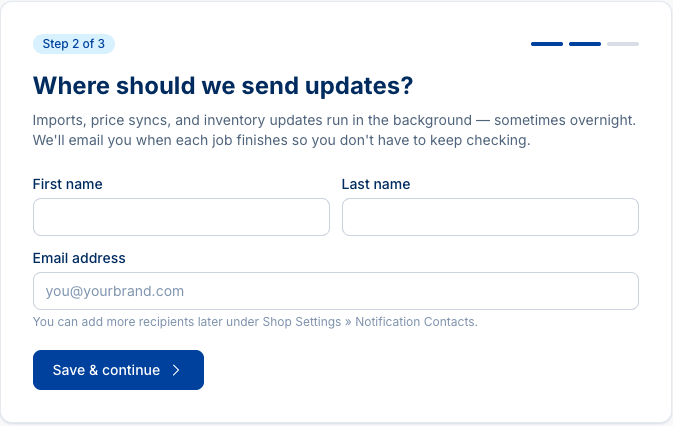
- Enter at least one email address
- Submit to advance
You can add or remove notification contacts later from Settings.
Step 3 of 3: Try it, import your first products
PromoSync adds two sample products from HIT Promo to your Shopify store so you can see how a finished PromoSync listing looks before importing your full catalog. The two products vary by environment but are picked to demonstrate variants, pricing tiers, and metafields populated automatically.
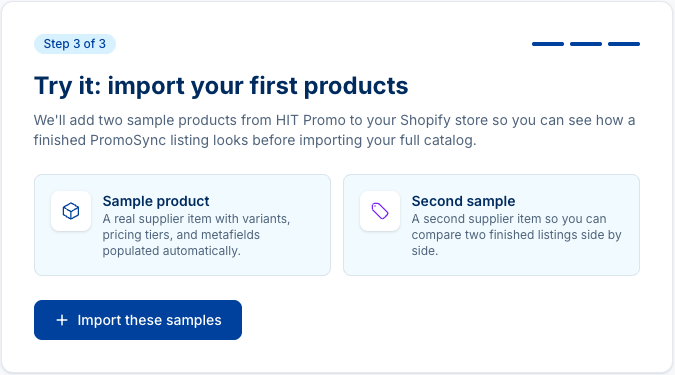
- Click Import these samples
- The wizard advances to an “importing” screen that polls for completion
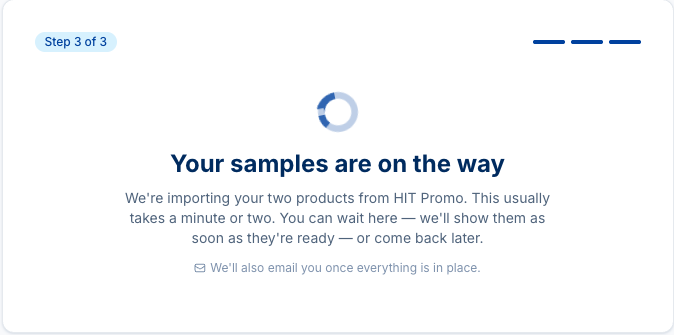
- When the products land in Shopify, you’ll see a celebration screen with links to the new listings
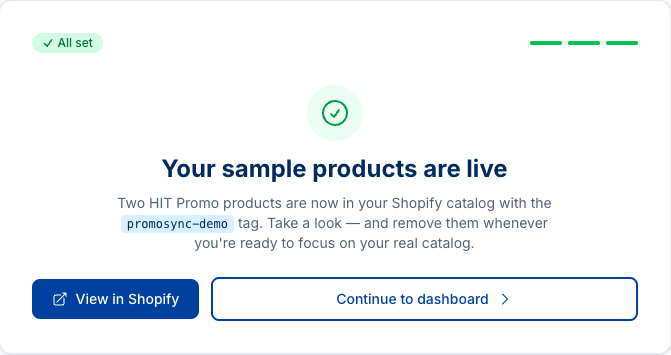
- Click Continue to dashboard to exit the wizard
The demo products are real supplier records, so they include live pricing tiers, variants, and metafields. Feel free to delete them after you’ve inspected them; the dashboard reverts to the regular Overview the next time you load it.
What to Do After the Wizard
The dashboard now shows the regular Overview, with the recently imported sample products counted. From here you’ll typically pick one of the following next steps depending on your starting state:
| Your starting state | Next step |
|---|---|
| Fresh Shopify store, no existing products | Import Products from supplier catalogs |
| You already have products in Shopify (added manually or via another app) | Connect Existing Products |
| You want to tune pricing rules first | Pricing Configuration |
| You want to control how often inventory syncs | Inventory & Scheduling |
Re-running the Wizard
The wizard only runs as long as the three gates are incomplete: missing PSRESTful key, no active notification contact, or no products in Shopify carrying PromoSync metafields. Deleting your products in Shopify after onboarding will not trigger the wizard again, because PromoSync’s backend still has them registered.
If you want to genuinely start over (e.g. for testing), contact support.
Troubleshooting
The wizard skipped Step 3
This usually means PromoSync’s backend already lists products against your shop, either from a previous install or from an earlier test session. Refresh the dashboard once; if the wizard still skips Step 3, your shop is past onboarding and you can use Import Products directly.
Step 1 keeps rejecting my key
- Generate a fresh key in your PSRESTful dashboard and try again
- Confirm the key belongs to an account with an active subscription
- Make sure you copied the private key (not the public one)
I never received the demo import email
- Confirm the email you entered in Step 2 is correct (check Settings → Notification contacts)
- Look in spam or filtered folders
- The dashboard Overview also shows recent activity, including the sample import; that’s the most reliable confirmation