Decoration Defaults
Decoration Defaults control the price your storefront falls back to when a physical product has no decoration pricing of its own for a given imprint method and charge kind. This is the case for blanks: SanMar, S&S Activewear, and most apparel suppliers sell undecorated goods and publish no decoration pricing, so PromoSync has no per-product number to charge. Decoration Defaults fill that gap with a sensible, shop-wide price.
How Decoration Pricing Normally Works
PromoSync stores decoration pricing on each product in the psrestful.location_decorations metafield. For suppliers that decorate (and publish PromoStandards Media Content), that metafield carries the exact setup fee, run charge, and extras for every method the supplier offers, so the storefront charges the product’s own pricing.
To make this efficient across thousands of products, PromoSync builds a canonical decoration catalog: one Shopify product per imprint method (Screen Print, 3D Embroidery, 4-Color Process, and so on), each carrying one variant per pricing class. A pricing class is a group of suppliers that all charge the same price for the same (method, kind). Each class is identified by a stable 8-character pricing hash (for example #e6b507fc), which doesn’t change when the catalog is re-imported as long as the underlying supplier prices stay the same.
When a product does publish decoration pricing, the storefront points straight at the matching class. When it doesn’t, the storefront needs a fallback, and that is what Decoration Defaults set.
What a “Default” Is
For every combination of:
- Method — the imprint method, for example
3d-embroidery,4-color-process,applique,screen-print. - Kind — the charge being priced. The charge kinds are:
| Kind | Meaning |
|---|---|
setup_fee | One-time setup charge for the first location |
run_charge | Per-unit run charge |
extra_color_setup | One-time setup for each additional color |
extra_color_run | Per-unit run charge for each additional color |
extra_location_setup | One-time setup for each additional location |
extra_location_run | Per-unit run charge for each additional location |
pms_match | PMS color match charge |
PromoSync designates one pricing class as the current default. That class’s variant is what the storefront charges for any blank product that maps to this (method, kind) but has no per-product pricing of its own.
Auto-Pick vs. Pinning
By default, PromoSync picks the default for you. On every Insert decorations run it auto-picks the most popular pricing class, the one shared by the most suppliers in your selected-supplier subset, so the fallback price reflects the most market-typical number. Rows priced this way are labeled auto-picked in the Actions column.
If the auto-picked price isn’t the one you want to charge, you can pin a specific pricing class instead. A pinned class:
- Overrides the auto-pick for that (method, kind) in your shop.
- Survives re-imports. PromoSync remembers your choice by its pricing hash, not by the underlying Shopify variant ID (which can rotate), so re-importing the canonical catalog won’t lose your pin.
- Is labeled Override next to the current default, with a Clear override action to return the row to auto-pick.
The default only ever applies to products that have no per-product pricing for that (method, kind). Products whose supplier publishes decoration pricing always use their own price, regardless of what you pin here.
Finding the Settings Page
- Open PromoSync from your Shopify admin.
- Go to Shop Settings.
- In the sidebar, click Decoration Defaults.
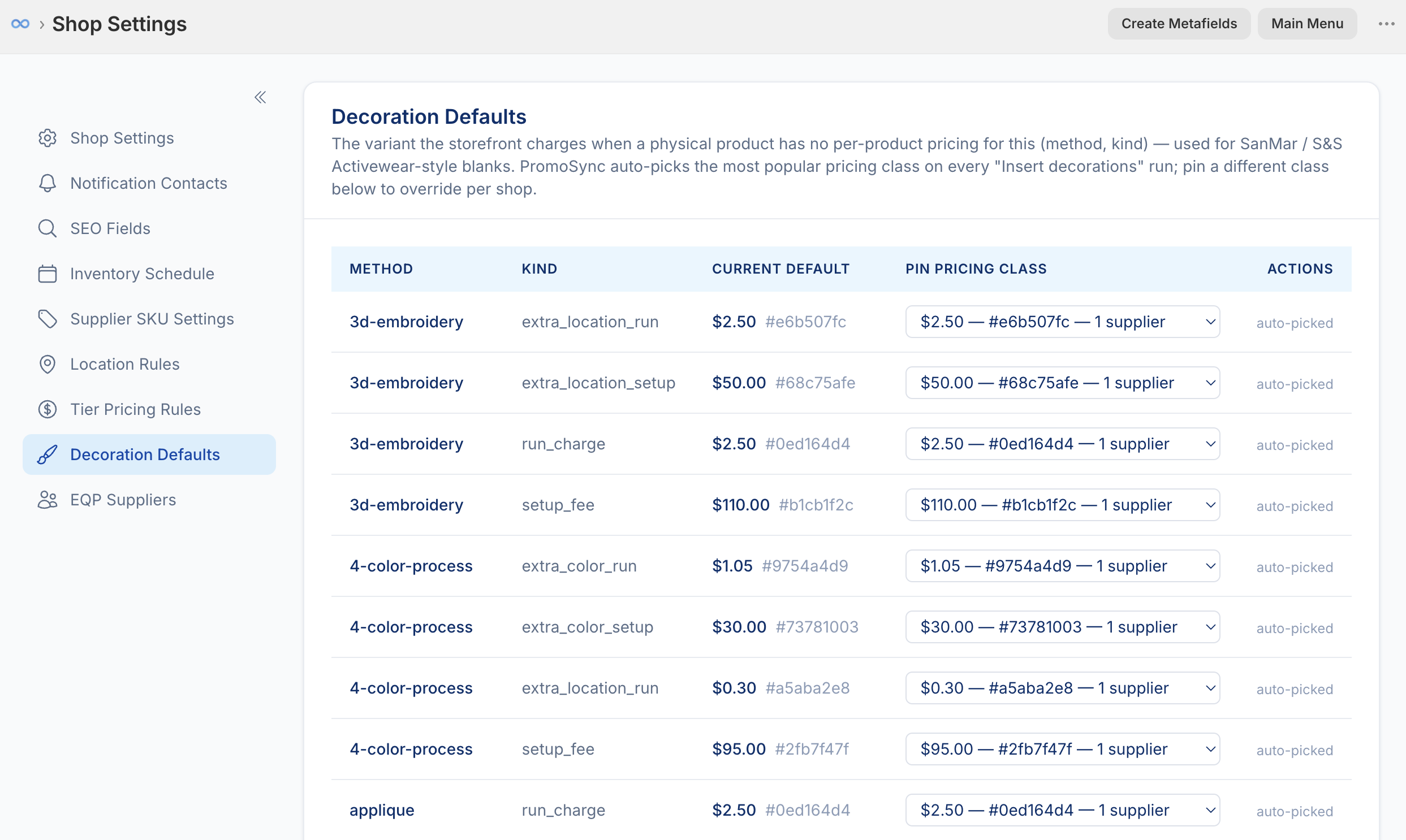
The table has one row per (method, kind) and these columns:
- Method — the imprint method. The method name links to the canonical decoration product in your Shopify admin.
- Kind — the charge kind from the table above.
- Current Default — the price and pricing hash the storefront currently charges for blanks (for example
$2.50 #e6b507fc). An Override badge appears here when you’ve pinned the class yourself. - Pin pricing class — a dropdown of every available class for that row, shown as
price — #hash — N supplier(s). The classes are ordered with the most popular (most suppliers) at the top, so the recommended pick is first. - Actions — shows auto-picked for rows PromoSync chose, or a Clear override button for rows you’ve pinned.
Pinning a Different Class
- Find the (method, kind) row you want to change.
- Open the Pin pricing class dropdown.
- Choose the class you want. The supplier count next to each price helps you judge how common that price is.
- The change saves as soon as you pick it. The Current Default column updates and the row is now marked Override.
PromoSync writes your choice both to its own records and to the canonical product’s default_variant_id metafield, so the storefront reflects the new default immediately.
Clearing an Override
To go back to letting PromoSync auto-pick:
- In the Actions column for that row, click Clear override.
- Confirm. PromoSync removes your pin and clears the stored default.
On the next Insert decorations run, PromoSync will auto-pick the most popular class for that row again.
Bulk-Setting Defaults
If you built your canonical catalog before this feature existed, some rows may have no default set yet (shown as – not set –). When that happens, a banner appears at the top of the table telling you how many rows are unset, with a Save all auto-picks button.
Clicking it writes the recommended (most popular) class as the default for every row that currently has none, in one step. Rows that already have a default (auto-picked or pinned) are left untouched, so you won’t accidentally overwrite a deliberate pin.
Each row is one Shopify API call, so bulk-saving across many methods can take a few seconds.
When Defaults Are Written
The default for each (method, kind) is (re)written automatically on every Insert decorations run that rebuilds the canonical catalog. Auto-picked rows are recomputed from the current supplier mix; pinned rows keep your choice as long as that pricing class still exists in the catalog. If a pinned class disappears (for example, every supplier in it changed pricing), PromoSync falls back to the recommended class for that run and logs the change.
Related
- Location Rules — set default locations and decoration methods for blanks that ship no decoration data at all.
- Tier Pricing Rules — configure quantity-based decoration pricing tiers.