Location Rules
Location Rules let you teach PromoSync your house decoration defaults so they’re applied to imported products even when the supplier doesn’t ship decoration data. Each rule says: “for any product with these tags, the default locations and decoration methods are these.”
Why You Need These Rules
The PromoSync metafield that powers the storefront decoration block is psrestful.location_decorations. PromoSync populates that metafield from the supplier’s Media Content / Decoration data. When a supplier doesn’t publish that data, the metafield is empty and the decoration block on your product page has nothing to show.
This happens in two common situations:
- Suppliers that ship blanks. SanMar, S&S, and most apparel suppliers don’t decorate themselves; they sell undecorated goods and leave decoration to you. Their PromoStandards feeds therefore don’t include location or decoration pricing data. PromoSync has nothing to write into the metafield.
- Suppliers part-way through PromoStandards. Some suppliers are still rolling out PromoStandards services and have Product Data live but Media Content / Decoration not yet ready. The end result is the same: no decoration data to import.
Location Rules close that gap. You configure your own defaults once (for example, “every product tagged polo gets Front Chest with Embroidery”), and PromoSync applies them automatically.
When Rules Are Applied
A rule fires in two situations:
- At import time. When PromoSync imports a product that lacks supplier-provided decoration data, it checks the product’s tags against your active rules and stamps the matching rule’s locations and decorations onto the new product.
- When the Apply Default Location Decorations bulk action runs. Use this for products you’ve already imported, or to re-apply rules after editing them.
Rules only add to what’s already there. If the supplier did publish decoration data for a location, that data is kept as-is; the rule only fills in locations the supplier left out. The action is safe to re-run.
Finding the Settings Page
- Open PromoSync from your Shopify admin.
- Go to Shop Settings.
- In the sidebar, click Location Rules.
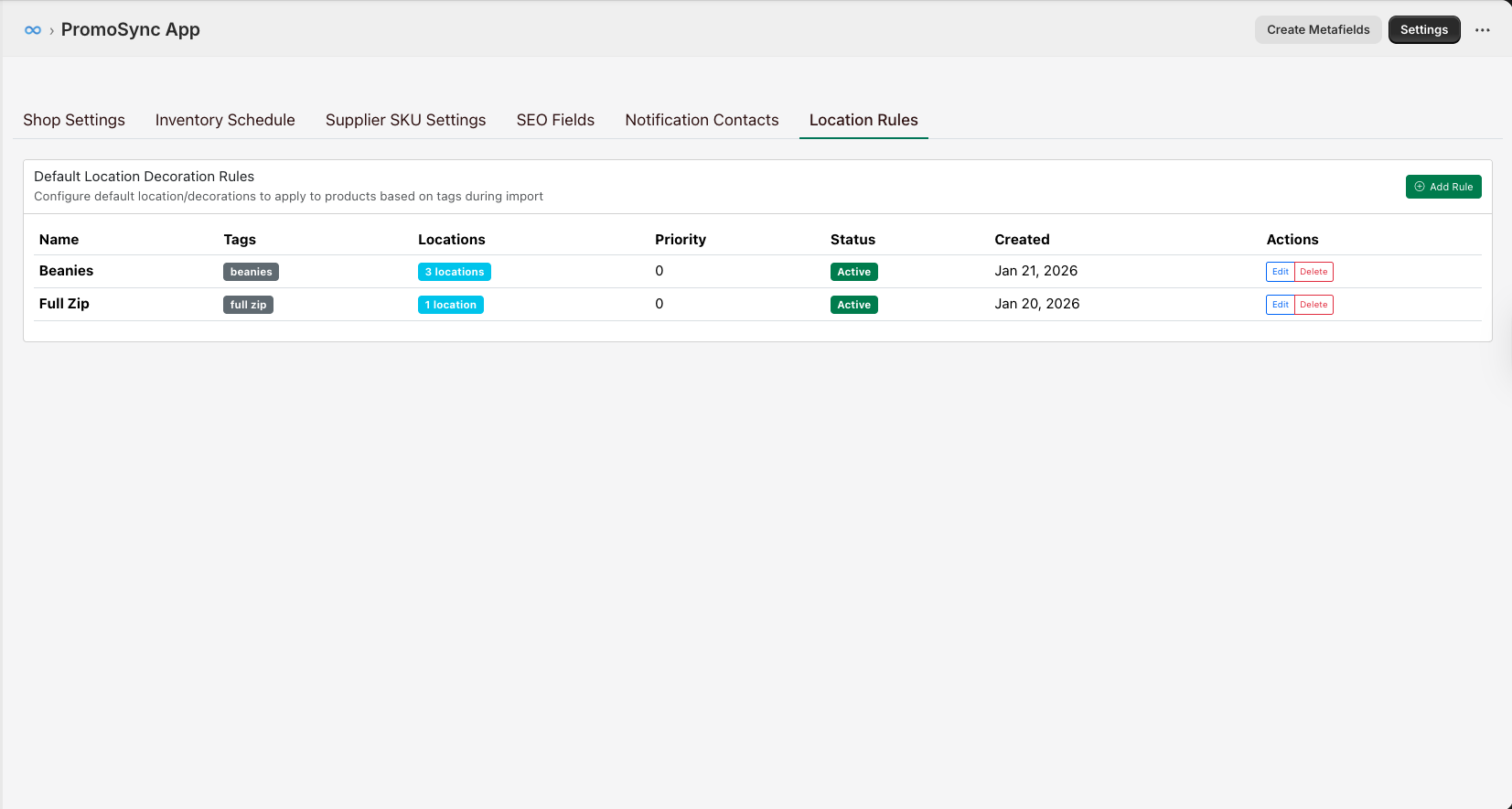
The Location Rules tab appears in the sidebar only when the Default Location Decorations feature is turned on in Shop Settings. If you don’t see it, enable the feature first.
The table lists every rule you’ve created, with columns for Name, Tags, Locations, Priority, Status, and Created. The pencil icon opens the rule for editing; the trash icon deletes it.
Creating a Rule
Click + Add Rule in the top right of the table to open the Create Location Decoration Rule dialog:
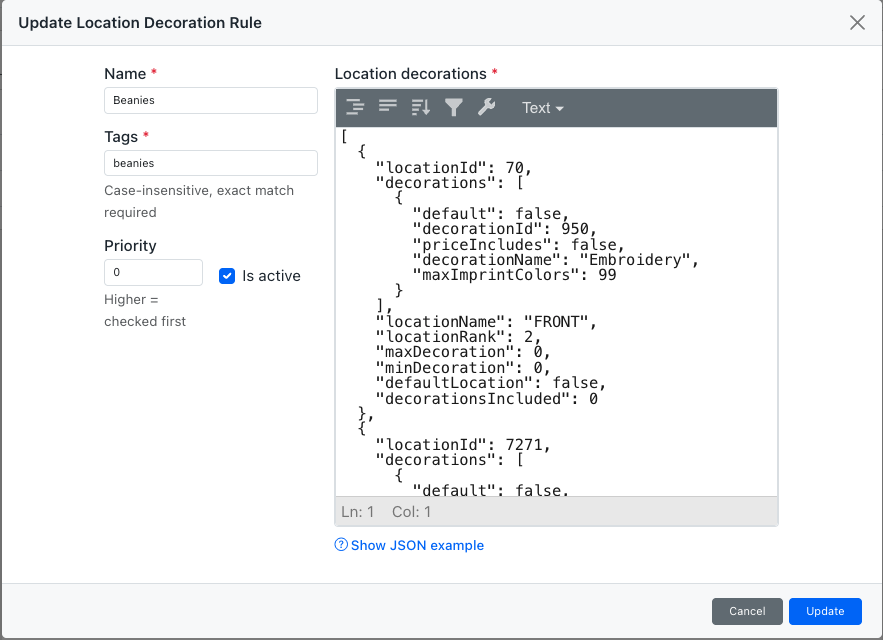
| Field | What it does |
|---|---|
| Name | A label for you. PromoSync never shows it to customers; it only appears in this settings table. |
| Tags | Comma-separated product tags this rule applies to. Matching is case-insensitive and exact: polo matches Polo but not polo-shirt. A product matches the rule if it carries any one of the listed tags. |
| Priority | If a product matches more than one rule, the higher-priority rule wins. 0 is the lowest. Use higher numbers for more specific rules so they override generic ones. |
| Is active | Uncheck to disable a rule temporarily without deleting it. Inactive rules are ignored at import time and by the bulk action. |
| Location decorations | The decoration data itself, as a JSON array of locations and decorations. Click Show JSON example under the editor to paste a working sample you can edit. |
Click Create to save. The rule takes effect immediately for the next import and for the next run of the bulk action.
Writing the JSON
The Location decorations field is a JSON array. Each entry describes one location, with a nested list of decoration methods available at that location. A minimal one-location example:
[
  {
    "locationId": 53,
    "locationName": "Front",
    "decorationsIncluded": 1,
    "defaultLocation": true,
    "decorations": [
      {
        "decorationId": 3764,
        "decorationName": "LASER ENGRAVE",
        "maxImprintColors": 1,
        "default": true,
        "priceIncludes": false
      }
    ]
  }
]
The fields you’ll typically set per location:
| Field | What it means |
|---|---|
locationId | The PromoStandards location ID. PromoSync uses this to pair the decoration with Decoration Listings charges. |
locationName | Human-readable label shown on the storefront (e.g. Front, Back, Left Sleeve). |
decorationsIncluded | How many decoration methods at this location are included in the base price (vs. priced separately). |
defaultLocation | true for the location pre-selected when a customer opens the product. Exactly one location should have this set. |
decorations | Array of decoration methods available at this location. |
And per decoration inside decorations:
| Field | What it means |
|---|---|
decorationId | The PromoStandards decoration ID (e.g. embroidery, screen print, laser engrave). |
decorationName | Human-readable label for the method (e.g. EMBROIDERY, SCREEN PRINT). |
maxImprintColors | Max number of imprint colors the method supports at this location. |
default | true for the decoration pre-selected when the customer picks this location. |
priceIncludes | true if this decoration’s cost is rolled into the variant price; false if it’s billed via Decoration Listings. |
The Show JSON example toggle in the dialog inserts a multi-location, multi-decoration sample you can copy and edit, which is usually easier than typing from scratch.
Tag and Priority Strategy
A few patterns that work well:
- One specific tag per rule. A single tag like
embroidered-polomatched by one rule is easier to debug than overlapping tags across many rules. - Generic at low priority, specific at high priority. Build a
default-decorationrule at priority0that covers your fallback case, then layer specific rules (embroidered-polo,laser-engrave-possible) at higher priorities to override it. - Use Shopify’s bulk-tag tools to apply your tags. You can filter products by vendor or collection in Shopify Admin and add a tag to all selected products at once, which makes large rollouts cheap.
Only one rule fires per product: the highest-priority active rule whose tags match. Ties are broken by most-recently-created.
Verifying a Rule Worked
After importing a product (or running Apply Default Location Decorations on it):
- Open the product in Shopify Admin and scroll to its metafields.
- Look for
psrestful.location_decorations. It should match the JSON you defined in the rule, possibly merged with any decoration data the supplier did publish. - Or load the product page on your storefront and confirm the decoration block shows the expected locations and methods.
Editing or Disabling a Rule
In the Location Rules table:
- Click the pencil icon next to a rule to edit any field. Saves take effect for the next import and the next bulk-action run, but they do not retroactively update products that have already been imported. Run Apply Default Location Decorations on the affected products to apply the new rule.
- Uncheck Is active to pause a rule without deleting it. Inactive rules are skipped during matching.
- Click the trash icon to permanently delete a rule. Deleting a rule does not remove decoration data from products that previously matched it.
Related
- Apply Default Location Decorations: the bulk action that stamps these rules onto products you’ve already imported.
- Enrich Location Decorations: wires each decoration on a product to its Setup Fee and Run Charge product so checkout charges the imprint correctly. Run this after applying default decorations.
- Decoration Listings: creates the Setup Fee and Run Charge products that Enrich Location Decorations references.